1.Download the App
Click the provided link to download the ''GamwingGaming2'' app. Once downloaded, open the app on your phone.https://jygamwing.com/download
2.Power On the Moxie2 Pro
Connect the Moxie2 Pro to a power source.The device will indicate it is ready by flashing a red light.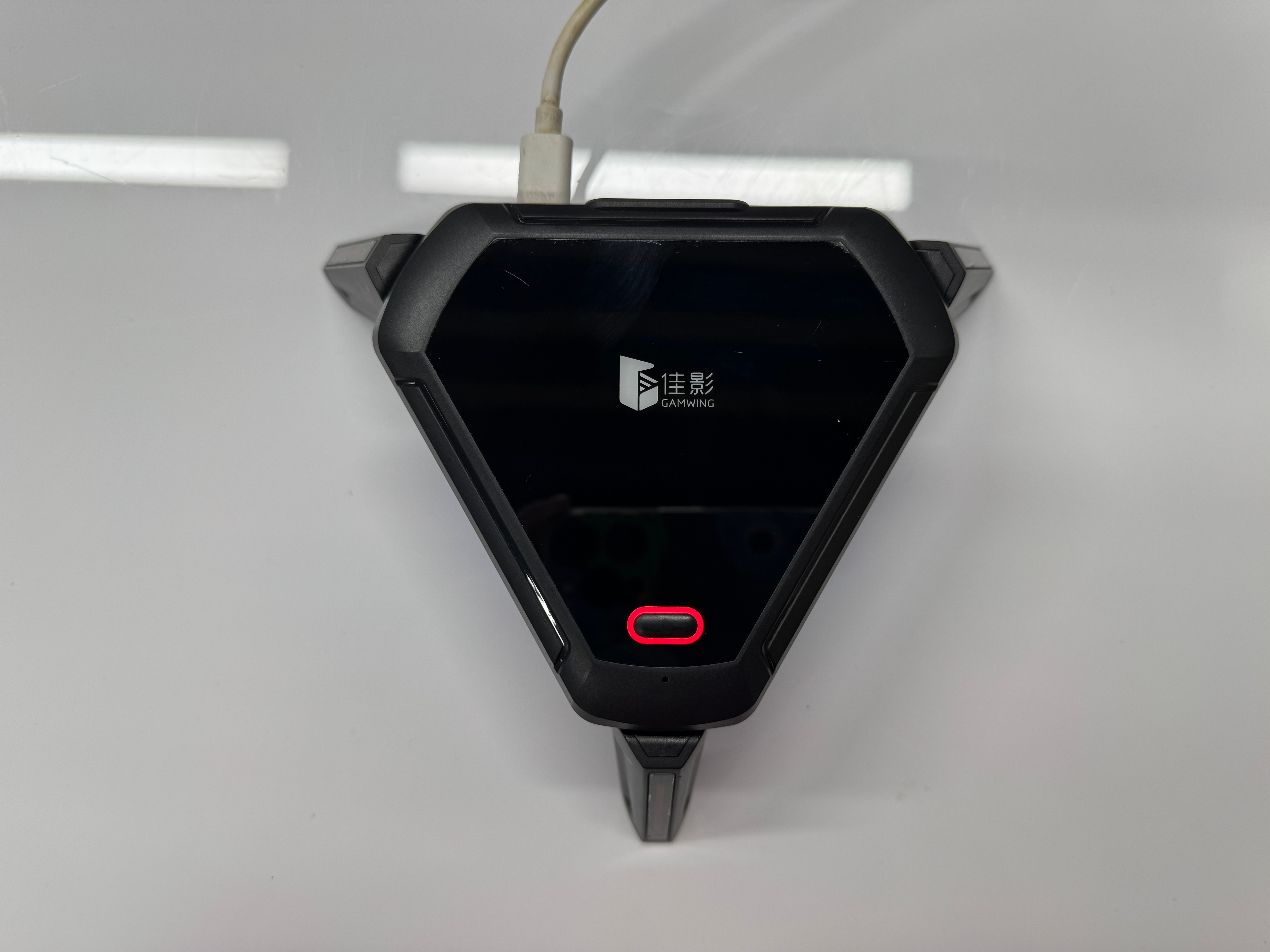
3.Connect via C-to-C Cable
Take a C-to-C data cable. Connect one end to the Moxie2 Pro’s port and the other end to your phone.
→ (Refer to the included images for correct connection steps.)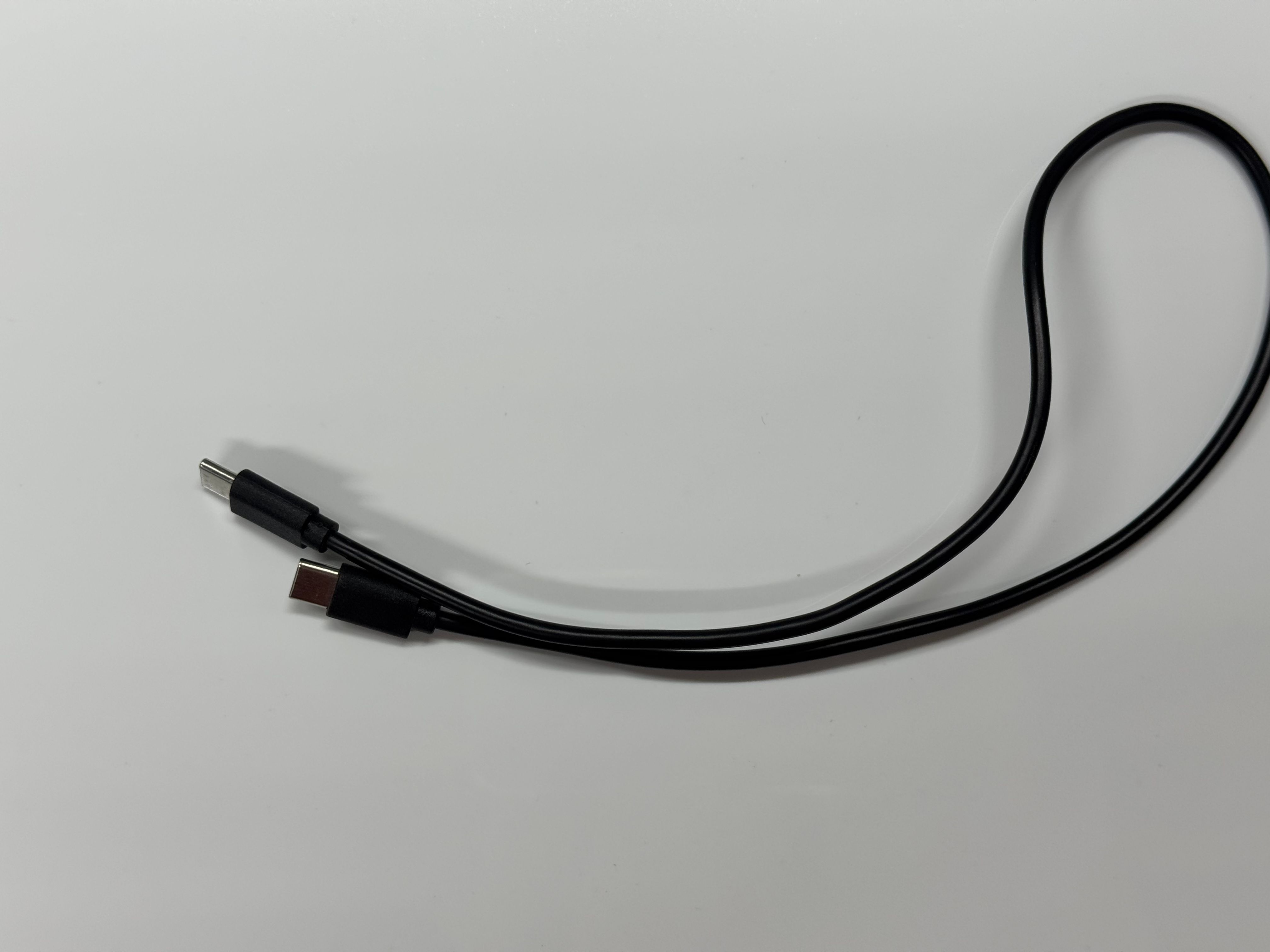
Once successfully connected, a pop-up will appear in the GamwingGaming2 app. Select 'OK’.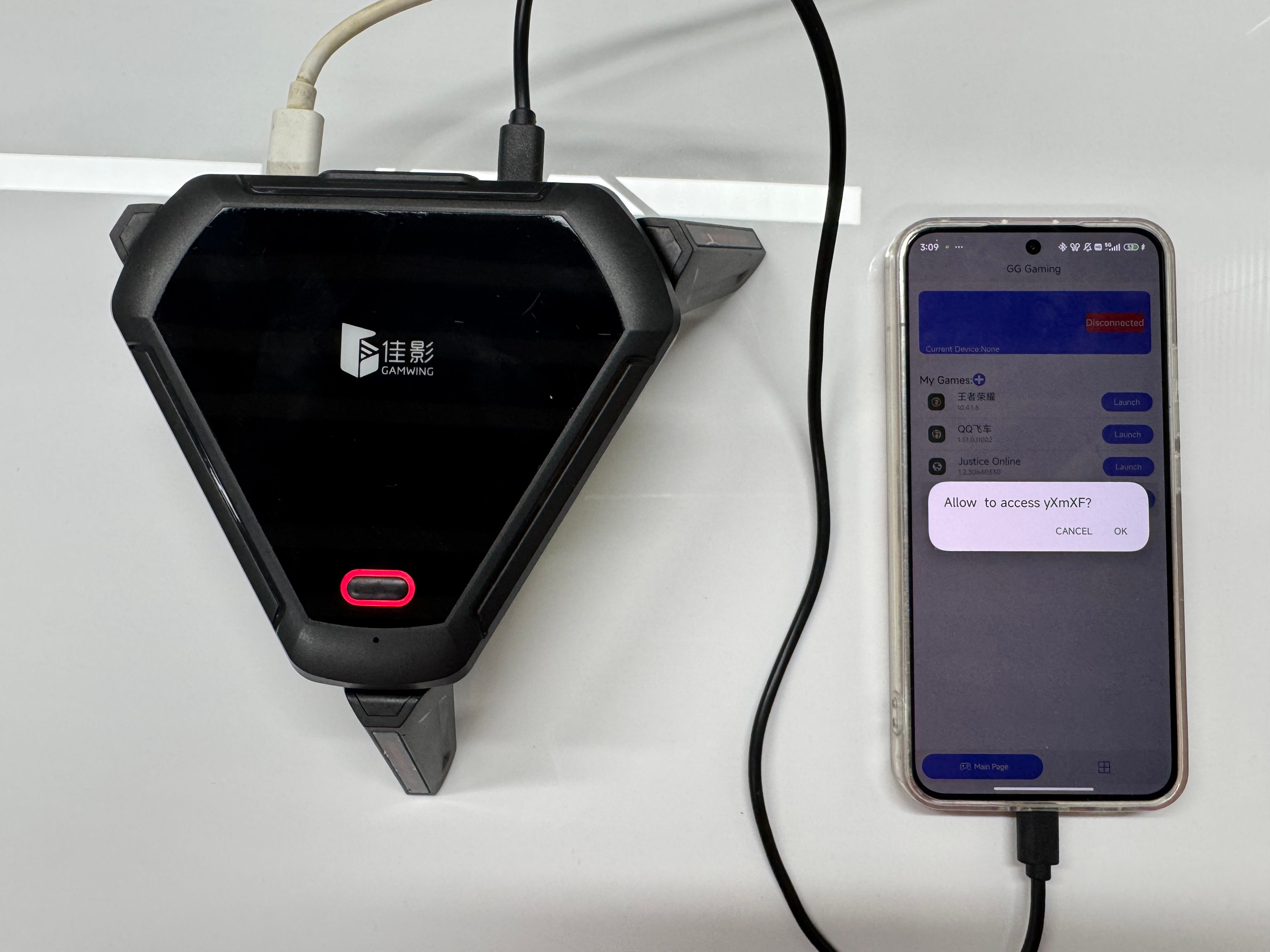
If the Moxie2 Pro logo appears at the top of the homepage, it indicates a successful connection.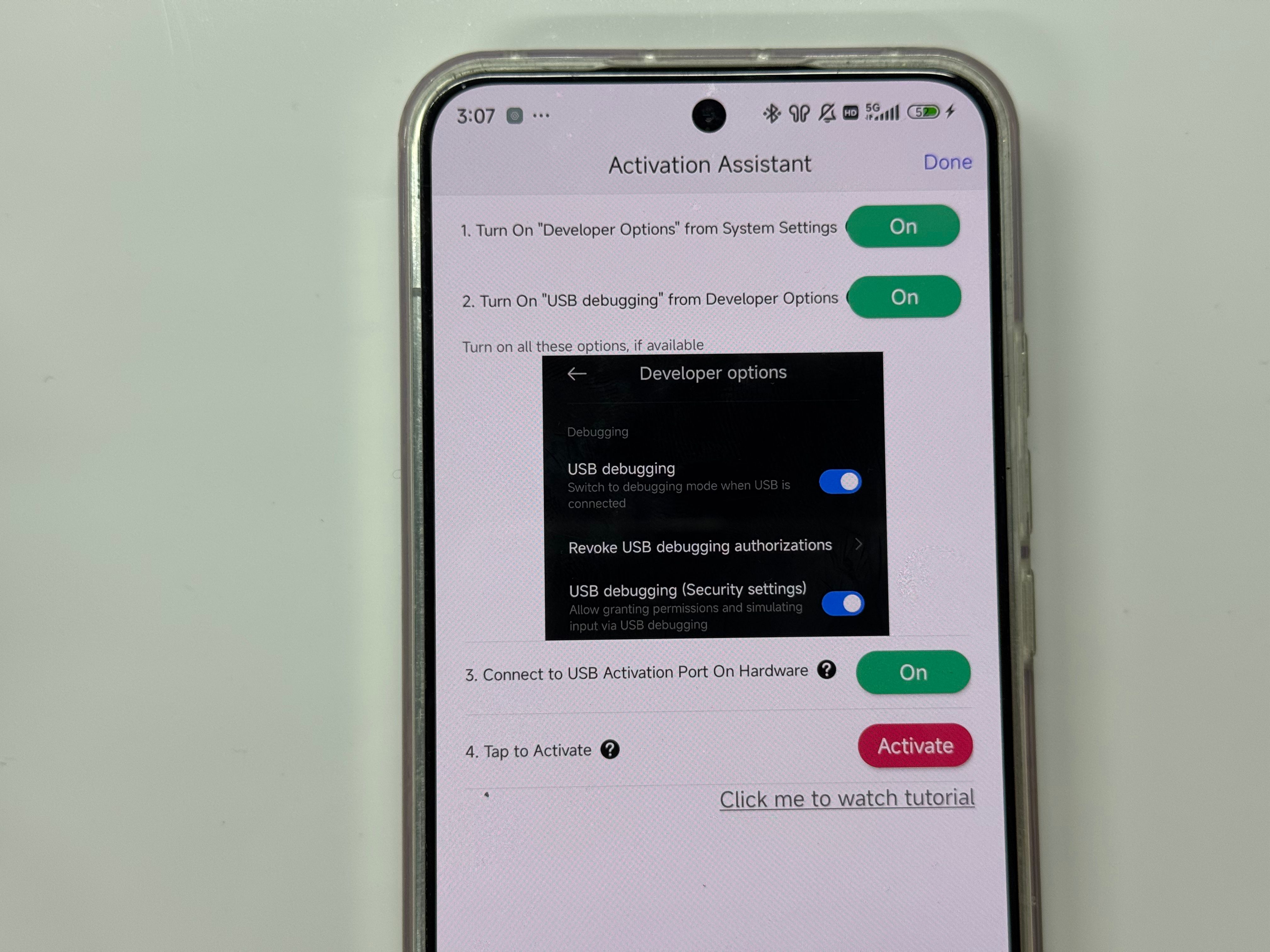
4.Activate the Device
Tap the “Activate” button at the bottom of the screen. You will be guided to the activation process: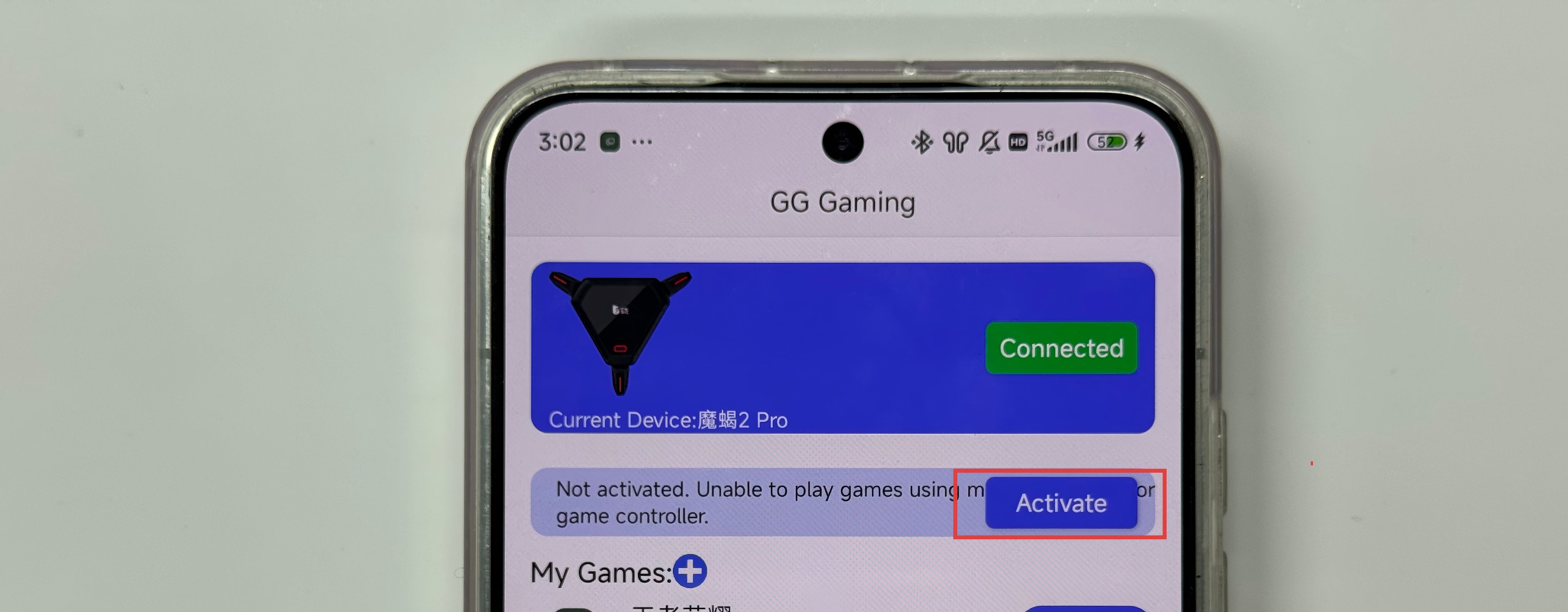 Disconnect the C-to-C cable from your phone.
Take a USB-to-C cable, and connect the USB end to the Moxie2 Pro’s keyboard/mouse port.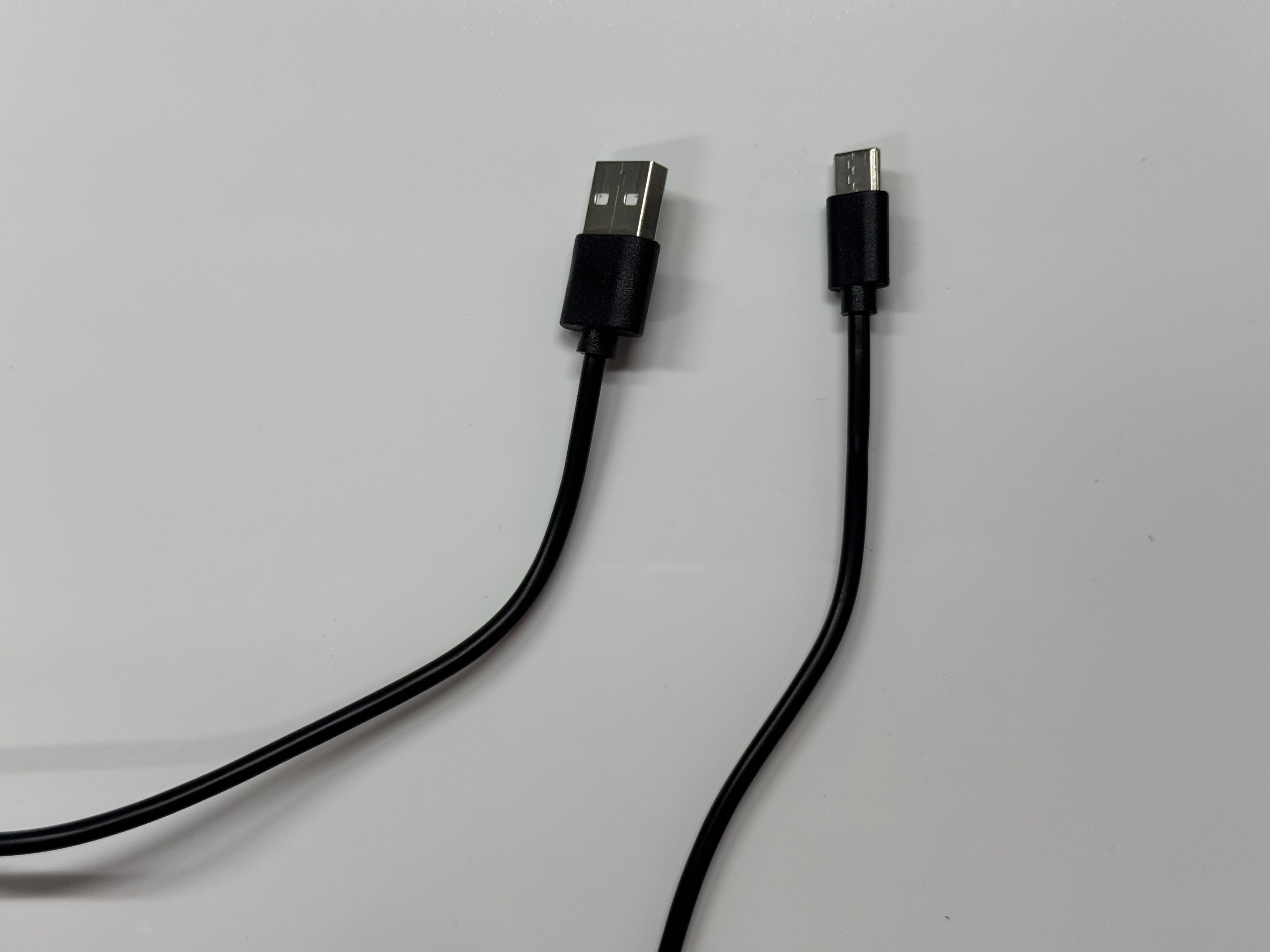
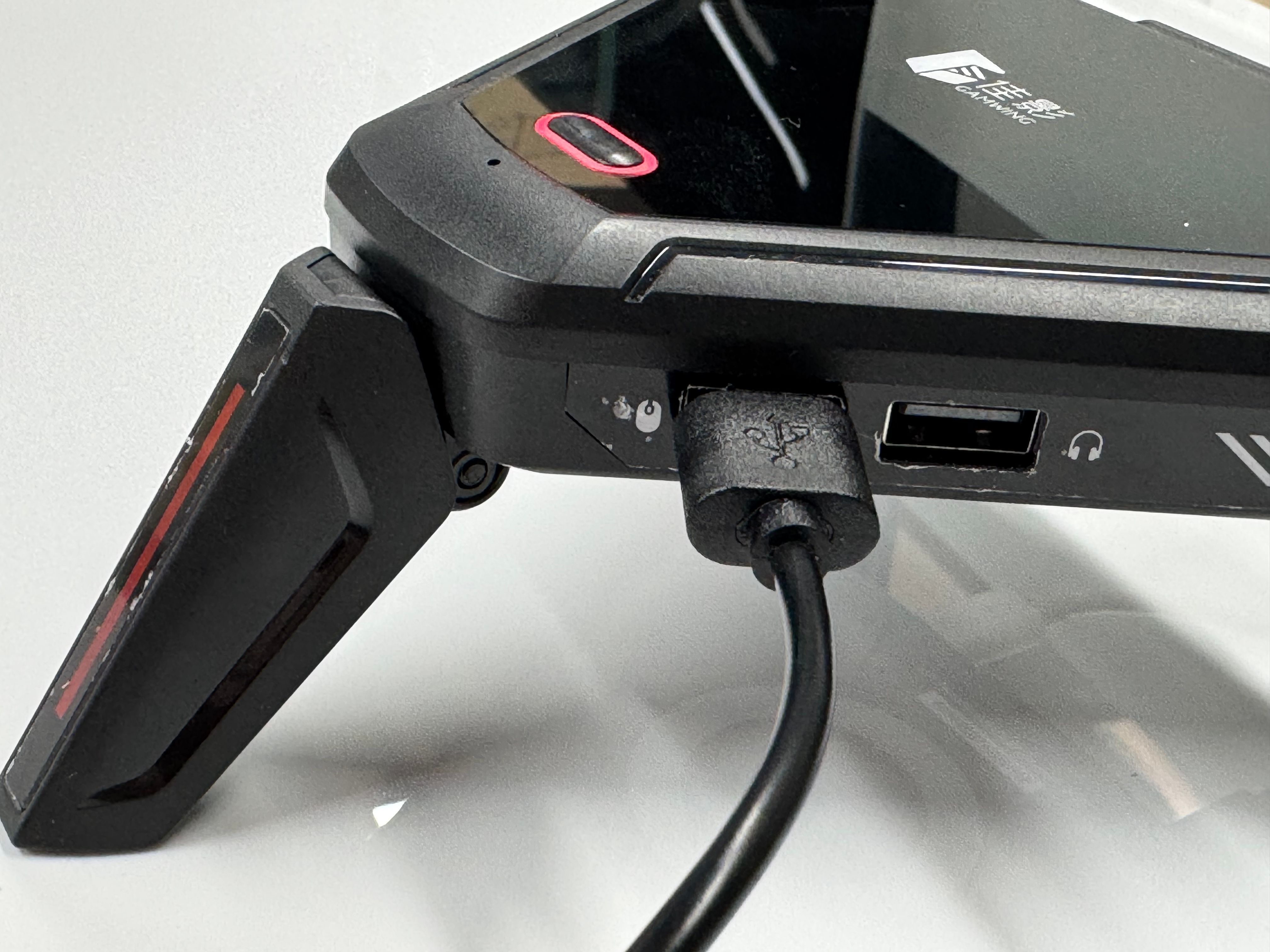
Connect the C end to your phone.When a pop-up appears, select OK.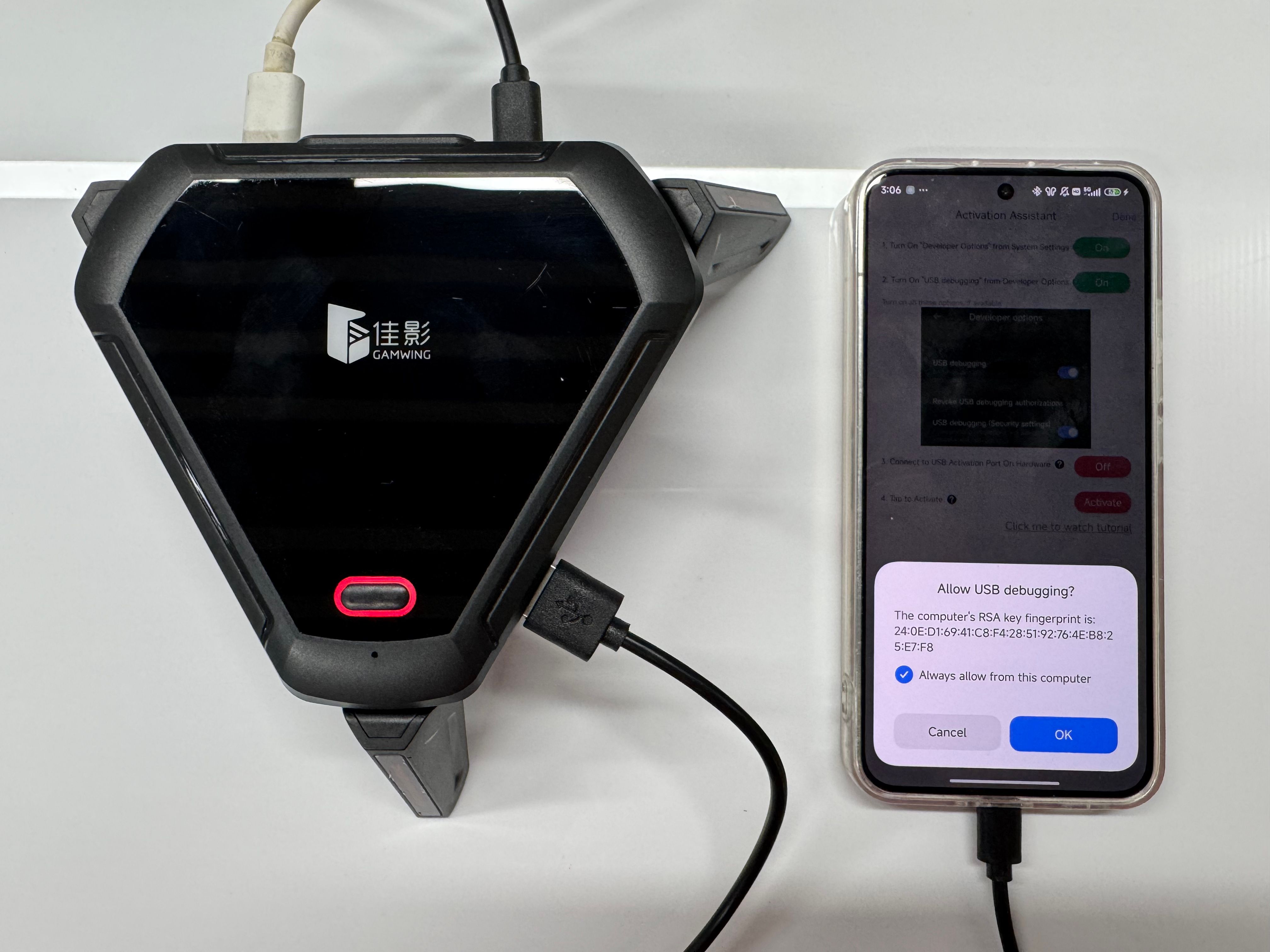
5.Complete Activation
After activation, the indicator light will change from red to green.Tap the Red button on the app and follow the on-screen instructions to enable the required phone permissions.
6.Ready to Use
Once both indicators turn green, return to the app homepage.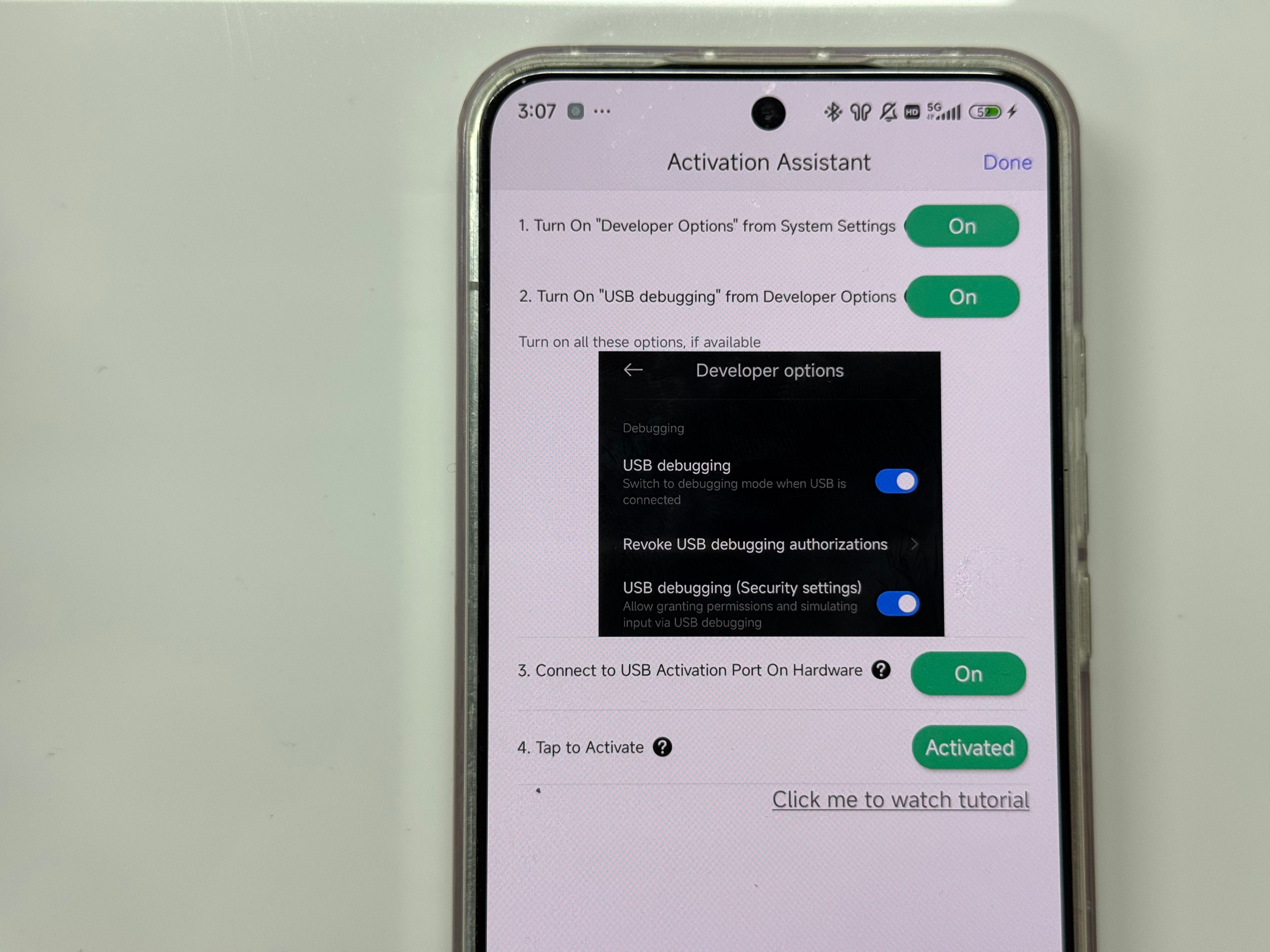
Disconnect the USB-to-C cable, and reconnect the original C-to-C cable between the Moxie2 Pro and your phone.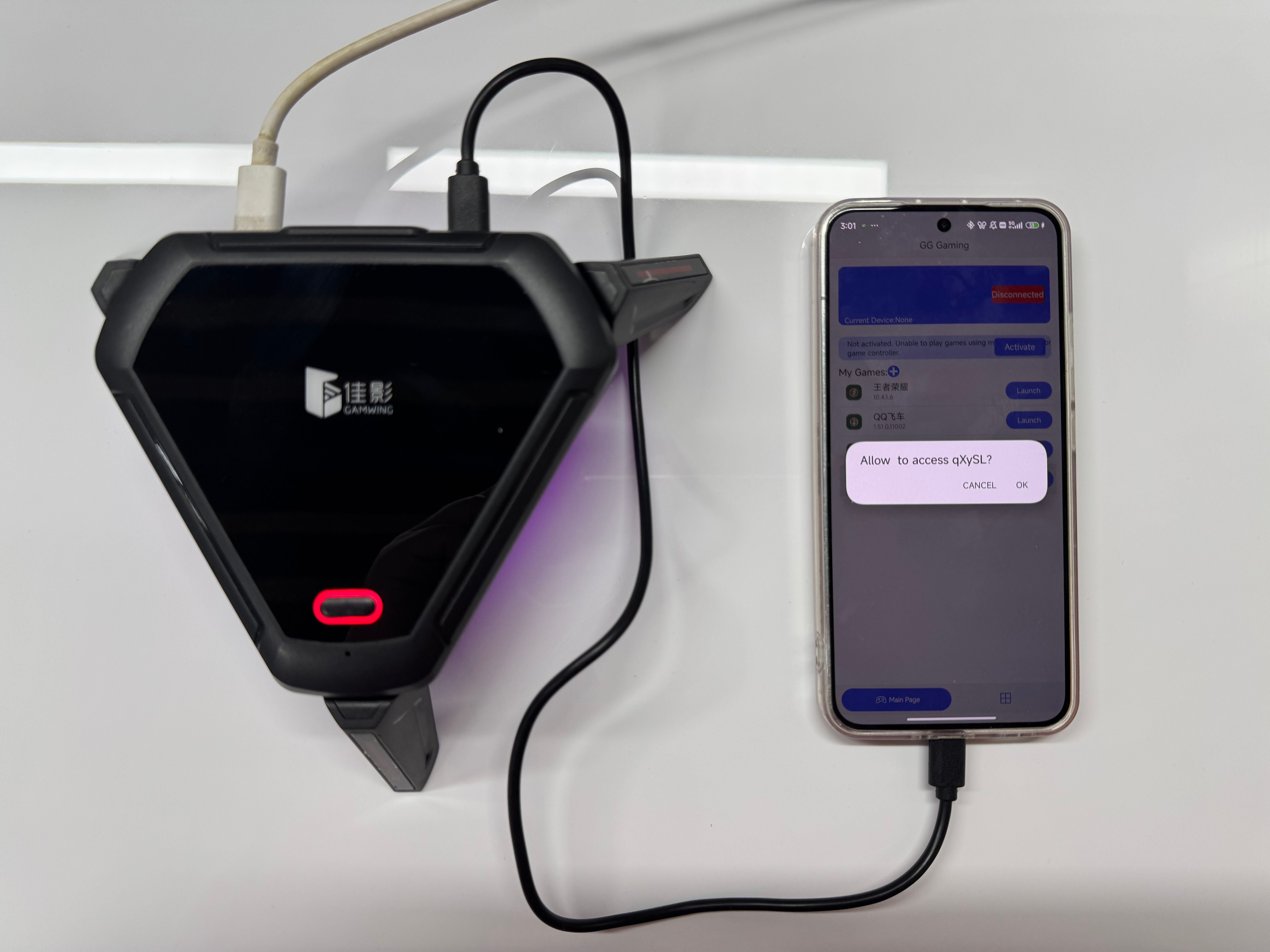
When the product graphic reappears in a pop-up, the device is ready for use.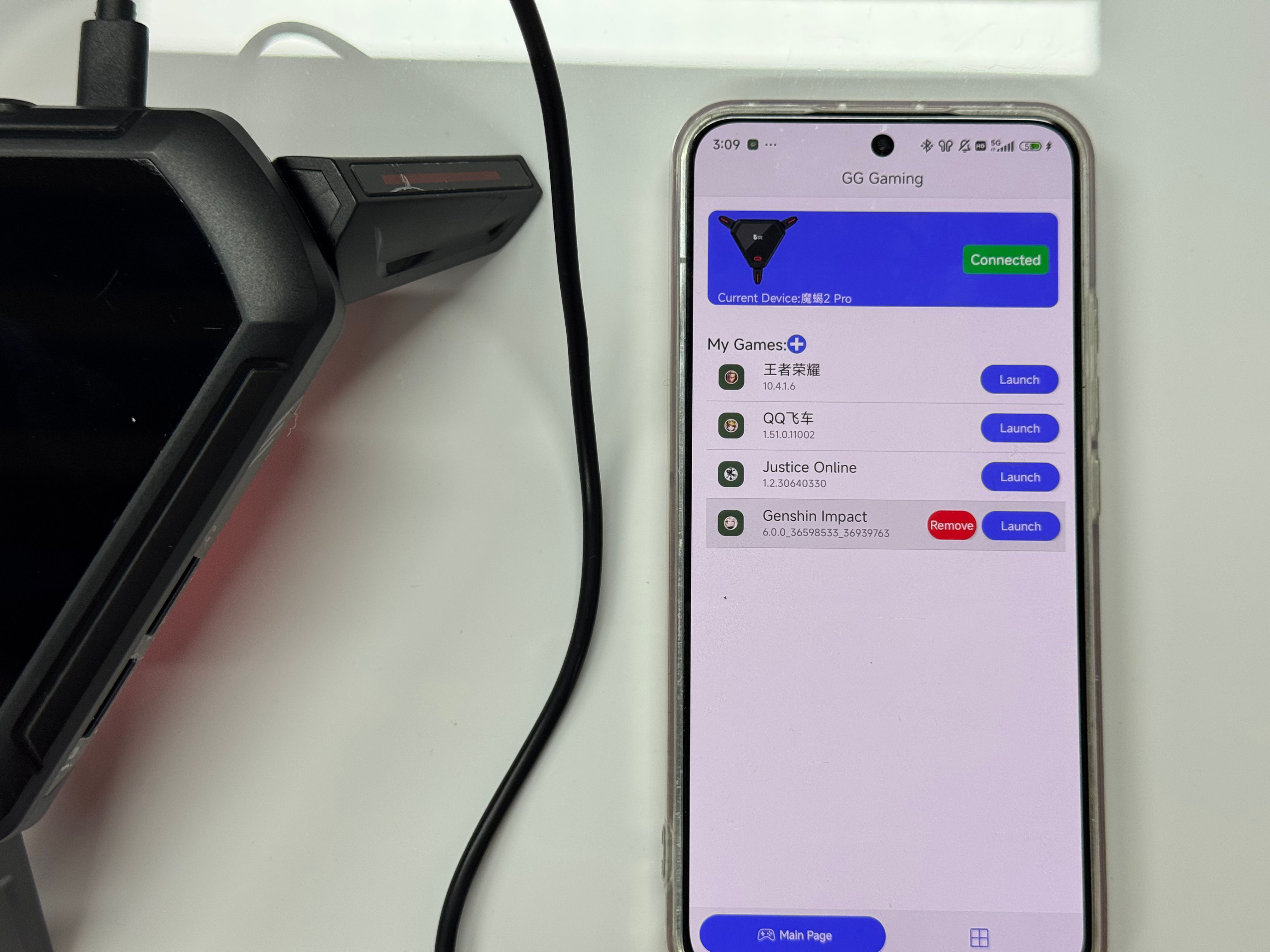 Note: If you encounter situations where it cannot connect or cannot be activated, please try changing the data cable.